
MCP Explained: How Enzzo Connects to the AI Tools You Already Use
Academy
Enzzo now supports MCP. Product teams gain new capabilities through access to the tools they rely on for creating new products.
Every time an AI assistant needs to talk to a new tool, someone has to build that connection by hand — one custom integration for Jira, another for Figma, another for Slack. Multiply that across every AI assistant your team uses, and the integration work never ends.
The Model Context Protocol (MCP) exists to solve exactly that problem: a shared standard that lets any MCP-compatible AI assistant plug into any MCP-compatible tool, without a one-off integration built for that specific pairing. Enzzo speaks MCP on both ends — as a client that reaches into your other tools, and as a server that lets your other tools reach into Enzzo.
This guide walks through what MCP actually is, how Enzzo uses it in each direction, and how to connect it in a few minutes.
What Is MCP (Model Context Protocol)?
MCP is a universal plug for AI. Historically, connecting an AI assistant to a tool like Jira or Figma meant someone had to build that specific connection by hand — a custom integration, maintained specifically for that one pairing of assistant and tool. Build a new assistant, or add a new tool, and the integration work starts over.
MCP replaces that one-off approach with a shared standard both sides agree to speak. Once a tool supports MCP, any MCP-compatible AI assistant can plug into it directly, without a custom-built bridge for that specific pairing. From where you sit, connecting still looks the same as connecting anything else — you add a URL, sign in, and grant access. The difference lives entirely behind the scenes, in how much engineering work it took to make that connection possible in the first place.
Key insight: MCP makes integrations exist for combinations that would never have justified a custom build. A small AI tool and a niche internal system can now connect on day one, instead of waiting for someone to prioritize that specific integration. |
Two Directions, One Standard
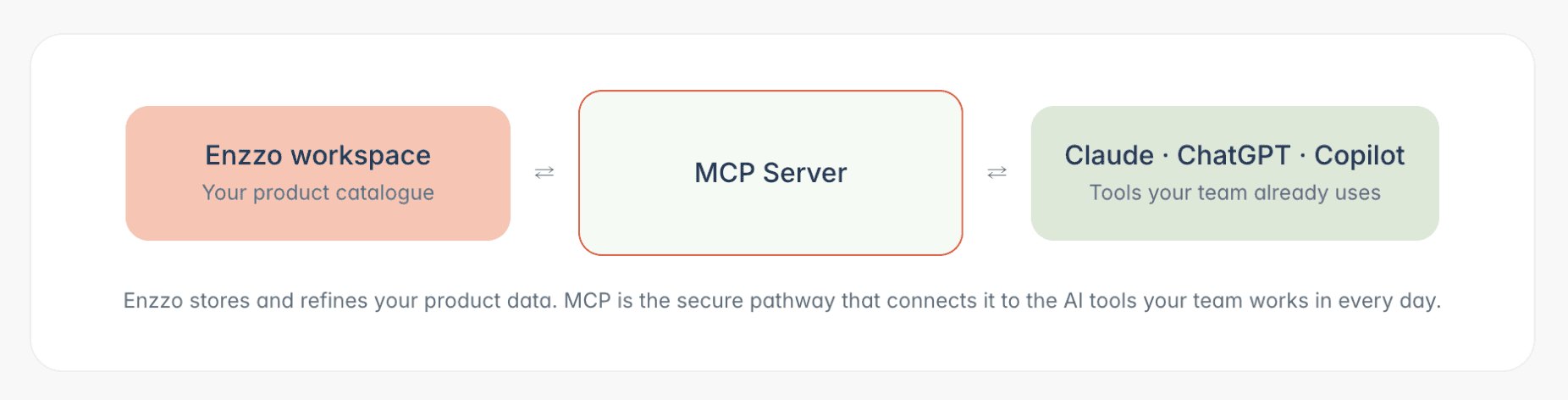
Enzzo shows up on both ends of the MCP connection. As a client, Enzzo's AI chat reaches out into your other tools — Jira, Notion, Slack, and more — pulling information in and creating things directly, without you leaving Enzzo. As a server, Enzzo is the one being connected to: external AI assistants like Claude and ChatGPT can read from your Enzzo workspace the same way Enzzo reads from theirs.
These two directions solve different problems, and it's worth understanding both before you decide which one to set up first.
Enzzo as an MCP Client: Bringing Your Tools Into Enzzo
This is the direction most people will actually feel day to day. Enzzo's AI chat can connect to external tools and use their capabilities directly in a conversation — reading from a service or creating something new in it — without you leaving Enzzo.
Here's what that looks like today, by service:
Figma — turn your Enzzo product data into a Figma wireframe in minutes.
Atlassian — pull from and create Jira tickets and Confluence pages without switching tabs.
Google — read and create Google Docs and Slides from inside your Enzzo conversation.
Notion — pull from and create Notion pages.
Fusion — turn your product idea in Enzzo into a physical 3D print to hold and stress test.
Linear — look up and create Linear tickets.
Slack — draft and send Slack messages.
Miro — build and edit Miro boards.
And the list isn't fixed. You can connect your own custom MCP server — any tool that speaks the MCP standard, even one not on this list — by adding its server URL directly in Enzzo's AI Tools settings.
It's worth being precise about a distinction that trips people up: with Integrations, you manually export something — a ticket to Jira, a doc to Google, a board to Miro. With AI Tools, Enzzo AI acts on your behalf, live, inside the conversation. Ask it to pull up a Jira ticket or draft a Confluence page, and it reaches into that tool itself. No manual export step.
Setup for this direction lives under Settings → AI Tools in Enzzo, separate from Integrations.
Client vs. server, in one line: with Enzzo as a client, Enzzo does the reaching. With Enzzo as a server (below), other tools do the reaching — into Enzzo |
Enzzo as an MCP Server: Bringing Enzzo Into Your Other AI Tools
Enzzo can also be the one being connected to. External AI assistants like Claude and ChatGPT can read from your Enzzo workspace directly — the reverse direction of the client side above. Ask Claude to summarize the top risks on a product, and it reaches into your actual Enzzo data to answer, instead of guessing.
What's confirmed for this release:
Read-only, for now. The external AI can read from your workspace — products, requirements, personas, competitive analyses, risks — but it cannot create, edit, or delete anything in it. Editing is planned for a future release.
The connection lives in the other tool, not in Enzzo. You add Enzzo's MCP endpoint as a URL in whichever assistant you're using (in Claude, that's under Connectors). There's no toggle, generated token, or settings screen on Enzzo's side to set this up.
Authentication reuses your existing Enzzo login. The URL itself isn't a secret — the actual gate is you signing into your own Enzzo account when the other tool tries to connect.
Scope mirrors your existing permissions. Access through MCP shows exactly what you can already see in Enzzo, nothing more. There's no separate access layer on top of your existing account permissions.
Security note: because sign-in happens through your normal Enzzo login and OAuth consent screen, there's no API key floating around in a config file for someone to leak. Revoking access is as simple as removing the connector from your assistant, or asking your Enzzo admin to revoke it server-side. |
How to Connect
Both directions take a few minutes to set up, and neither requires an API key.
To bring Enzzo into Claude or ChatGPT (Enzzo as a server): open your assistant's Connectors settings, add a custom connector pointing at https://app.enzzo.ai/api/mcp, and sign in to Enzzo when prompted. On the consent screen, approve read-only access, and you're connected.
To bring your other tools into Enzzo (Enzzo as a client): head to Settings → AI Tools in Enzzo and connect Jira, Notion, Slack, or any of the supported services — or paste in the URL of your own custom MCP server.
Five Ways Teams Are Already Using This
Ask Claude to create a Figma wireframe of your device UI or connected app, pulling in your Enzzo Dream product information.
Ask Claude or ChatGPT to check your workspace before drafting anything. “Summarize the top risks for my Smart Thermostat product” pulls the real answer from Enzzo instead of a guess.
Ask Enzzo to pull a Jira ticket into a conversation while you’re scoping a requirement, so you’re working from the actual ticket instead of a paraphrase.
Draft a Confluence page or Slack message from inside Enzzo the moment a decision is made, instead of writing it up separately after the fact.
Evaluate a new concept against real-world evidence. If your company's data is also accessible via MCP, query across the history of new projects, strategy review docs, interview transcripts, support tickets, to sharpen your product thinking.
Frequently Asked Questions
Can the assistant change my Enzzo data? No. Every tool exposed through Enzzo's MCP server is read-only.
Can it see other people's or other organizations' data? No. Access is scoped to your own Enzzo permissions, the same as logging into the web app yourself.
Do I need to paste an API key or secret? No. Sign-in is handled through your browser via OAuth; there are no keys to manage on either side of the connection.
Which assistants are supported? Any MCP client that supports remote (streamable-HTTP) servers with OAuth, which covers Claude and ChatGPT today. Other MCP-capable tools connect the same way, using the same
…/api/mcpURL.
Get Connected
MCP isn't a feature you have to think about once it's set up — that's the point. It's the plumbing that lets Enzzo and the rest of your AI stack stay in sync without anyone maintaining a custom integration for every pairing.
If you're using Claude or ChatGPT, add Enzzo as a connector with https://app.enzzo.ai/api/mcp. To bring Jira, Notion, Slack, and the rest into Enzzo, head to Settings → AI Tools and connect your first tool. Either direction takes a couple of minutes.
Get Started with Enzzo
Contact Sales